CODEX PHYSICAL BUILDS / 001

Benny’s Hub Mobile

A computer
built around
Ben.

Two switches. A Raspberry Pi. A screen that moves with him. A portable supplement to Ben’s main Surface setup, for playing, watching and having something to say.

Built with Ben, by NARBE House. Made with Codex.

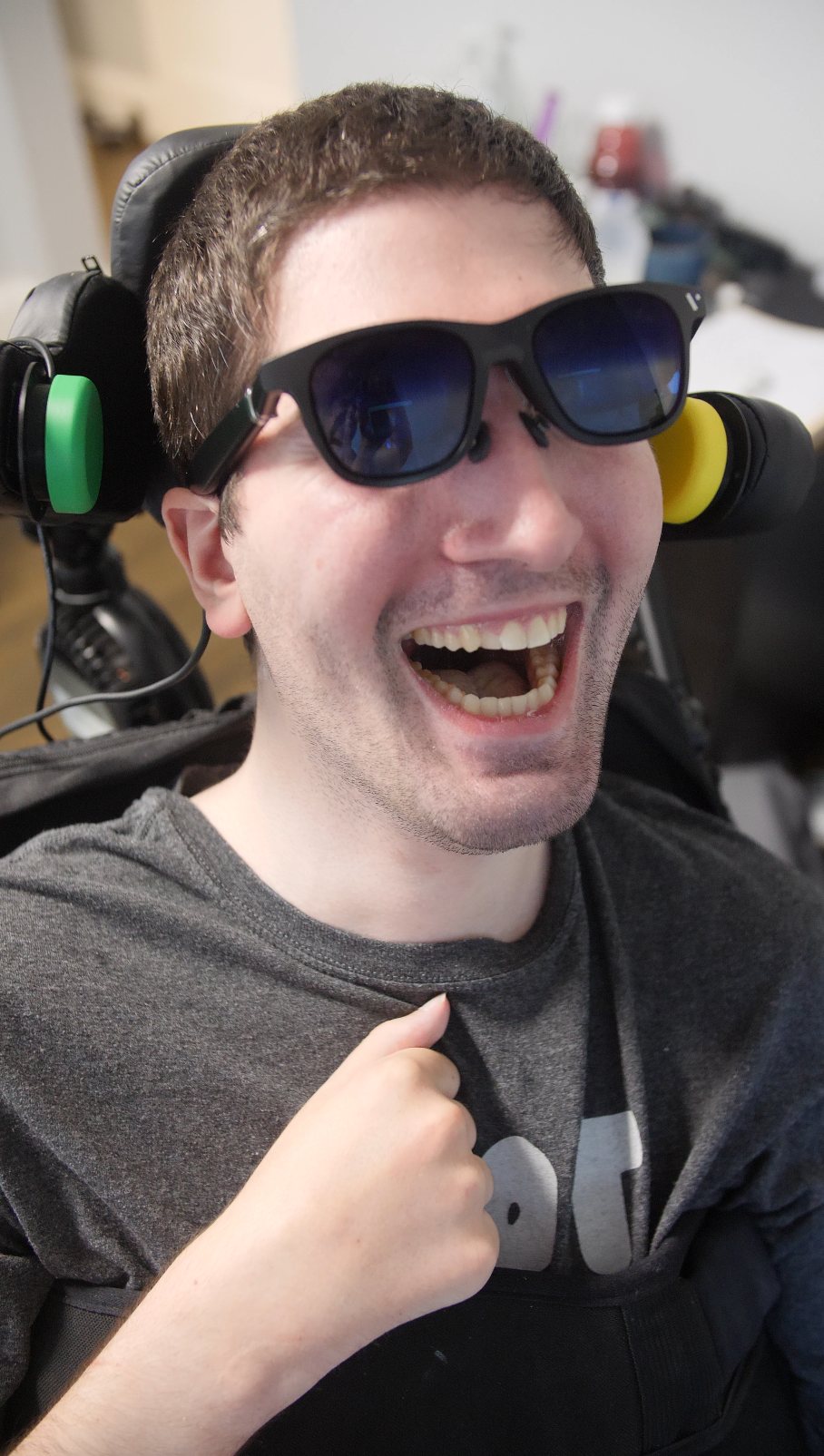
Ben smiling in his chair, wearing VITURE glasses with a green and a yellow switch beside his head.
THE PERSON AT THE CENTER OF THE BUILD

01 / 02 switch access

Raspberry Pi portable computing

XR glasses personal display

Open source shared to build on

01 / THE WHY

Keep the screen
in his world.

Ben is nonspeaking and quadriplegic due to a rare condition. He uses right and left head movements to communicate yes and no.

For years, Ben went without access to a computer system that worked for him. Using AI-assisted coding, we built a custom setup around the movements he already uses, giving him more choice over what he plays, watches and shares with the people around him.

Ben is also low vision. Those same head movements operate his switches, but with a conventional monitor each turn takes his eyes away from the screen. The glasses keep the display in front of his eyes while he makes selections.

It is still being fine-tuned. But when Ben tested the complete setup, it worked well for him, both in his chair and in bed.

Build for one.
Extend to many.

Head movement is Ben’s way of using switches. Someone else may use a hand, a foot or another reliable movement. The starting point is the person.

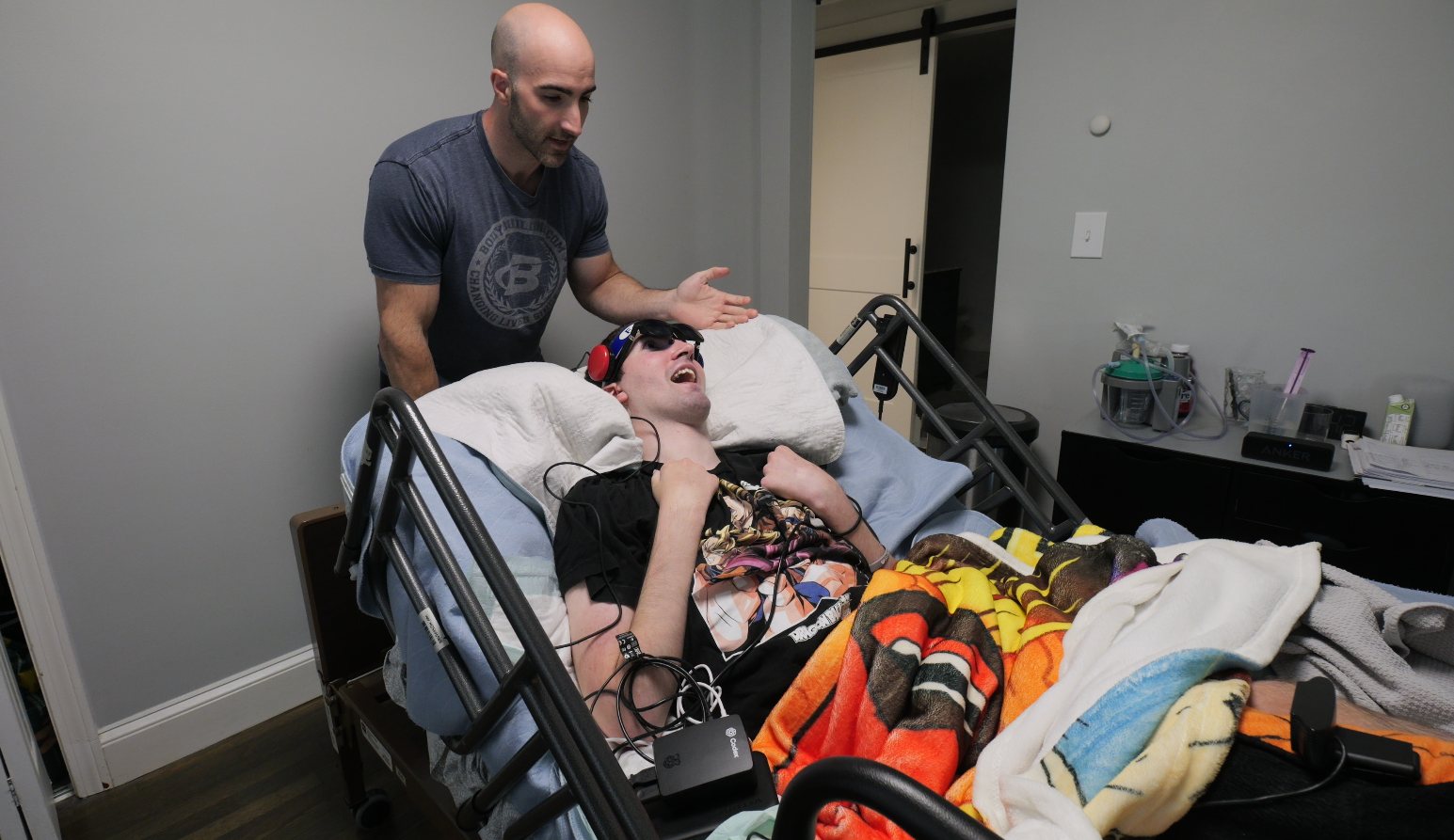
Ben using the glasses and switches in bed, with his brother beside him and the Raspberry Pi resting on the blanket.
FIG. 02 The same setup, wherever Ben is comfortable.
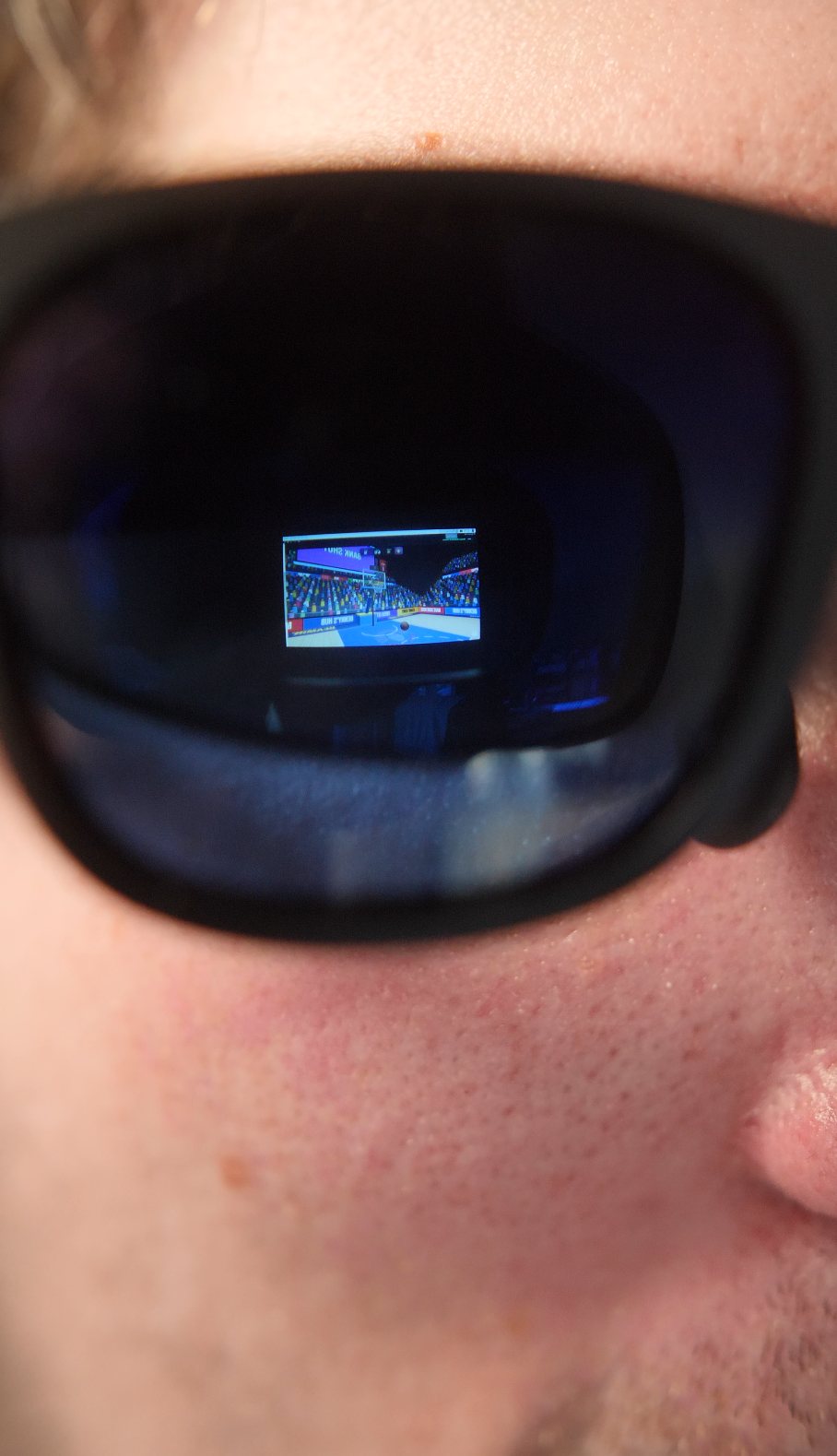
Close-up of Ben’s glasses, with the basketball game visible in the lens.
FIG. 03 Basketball, right in view.

02 / THE BUILD

Small kit.
A whole world of choices.

A familiar browser connects a few carefully chosen pieces of hardware. Ben’s two switches act like ordinary keyboard keys.

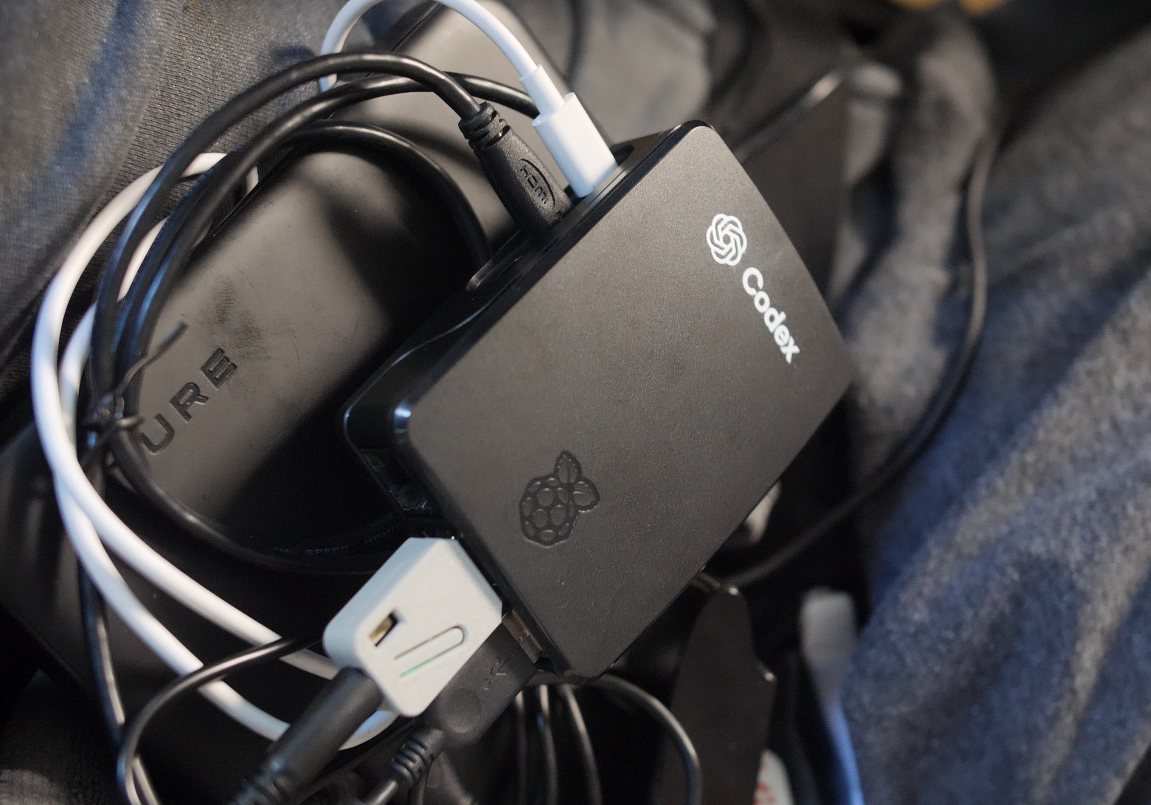
The Raspberry Pi in its Codex-branded case, VITURE battery pack, USB adapter and connected cables.
The actual kit: Raspberry Pi, battery pack and connections.
  1. 01

    Raspberry Pi 5 · 8 GB

    Runs Chromium and Benny’s Hub. Small enough to travel with Ben’s setup.

    The Raspberry Pi used in this build was supplied by OpenAI through the Codex Physical Builds project.

    Raspberry Pi 5
  2. 02

    VITURE XR glasses + battery pack

    An older VITURE model supplies the personal display and near-ear audio. The dock and battery arrangement makes the kit portable.

    VITURE One / Pro dock guide
  3. 03

    Two 3D printed switches

    SwitchedToys designs, positioned beside Ben’s head. One moves through choices; the other selects.

    Switch designs & build instructions
  4. 04

    Adafruit TRRS Trinkey

    Connects the switches to USB and sends Space and Enter. The computer sees a standard keyboard.

    TRRS Trinkey
  5. 05

    A separate Bluetooth speaker

    Ben’s messages and Help requests play aloud to the people around him. Media audio stays in the glasses.

    See the two audio paths
A NOTE ON POWER

The VITURE battery pack powers this build. Our working estimate is 4–6 hours of typical use, but a full runtime test has not been completed. Treat that as an estimate, not a measured battery specification.

INPUTTwo switchesHead movement
USB KEYBOARDTRRS TrinkeySpace + Enter
COMPUTERPi + Benny’s HubBrowser apps & games
OUTPUTGlasses + speakerSee, hear & communicate

03 / TWO SIMPLE INPUTS

Move.
Select.
Make it yours.

The same inputs connect Ben to games, shows and communication tools. With two switches, Space moves through menu choices and Enter selects.

One-switch access uses automatic scanning: choices advance on a timer and Enter selects. Scan speed, spoken feedback, input sensitivity and parking can be adjusted in the Hub.

Explore Benny’s Hub
TRY THE IDEAInteractive illustration

What would you like to do?

Press Move to highlight a choice.

Click these sample switches, or explore this section with the page’s switch controls. The sample choices explain the idea; choose Open Benny’s Hub to try the real apps.

04 / WHAT WE CHANGED

The hardware was
only the beginning.

Ben still uses his main Electron app on his Surface Pro. This Raspberry Pi kit is a portable supplement, running the web version of Benny’s Hub. Building it meant adapting the web apps to a smaller computer, a different display and use on the go.

01

Graphics that respect the Pi

Some of Ben’s favorite games use Three.js. We added a shared High / Standard / Low graphics setting so the supported games can inherit one choice from the Hub.

Low reduces rendering resolution, shadows and expensive visual effects while keeping the interface readable and the game’s timing and controls intact. Ben’s build uses Low; games can also keep an individual override.

Graphics implementation notes ↗
LESS GPU WORK
SAME GAME CONTROLS
02

A way into shows. And a way back.

For streaming on the Pi, the web setup takes a different approach from the desktop Python helper. Benny’s Hub Companion brings browser-based controls to supported services, including Netflix, Disney+, Hulu and Plex.

Ben browses a personal library, opens a title, uses the switch-accessible player bar and returns to the Hub. TMDB supplies optional posters and descriptions; the actual video stays with the streaming service.

The extension provides access controls, not streaming subscriptions. Service sign-in, playback restrictions and browser compatibility still apply.

Get the Companion extension ↗
BROWSE → WATCH
→ RETURN
03

Private listening. Audible communication.

The glasses are great for personal listening. But when Ben types a message or asks for help, the people nearby need to hear him.

Communication Speaker Mode routes messages and Help requests to a selected external speaker. Ordinary scanning speech uses the default output when enabled. In Ben’s setup, that means media and scan feedback in the glasses, and his communication through Bluetooth.

For Ben
Shows, games & scan feedback → glasses

For the room
Messages & Help requests → speaker

Speaker routing & development notes ↗
TWO OUTPUTS
TWO DIFFERENT JOBS
04

A voice worth waiting less for

Natural speech could take too long on the Pi’s CPU. An optional Faster mode uses lighter Piper voices, keeps the selected model ready, and reuses completed messages. The lighter mode was noticeably faster in our use on Ben’s Pi.

Thanks to our brother Bryan, custom voice support also gives Ben more personal choices. Natural mode supports custom voice files from Voice Studio; Faster mode has its own lighter voice collection. These are separate options, chosen for what works best on the device.

The speech models download on first use. Messages are synthesized on the device.

Speech engines, model sources & credits ↗
LESS WAITING
MORE PERSONAL CHOICE
05

The last mile was in the audio system

With RTC listening enabled, Bluetooth speech could start in a muffled headset mode—even though a separate USB microphone was being used.

On this Pi, disabling WirePlumber’s automatic Bluetooth headset-profile switching kept several test messages consistently clear. It was an operating-system setting, beyond what a web page can control.

See the Pi-specific fix ↓
CLEAR SPEECH
WITH A SEPARATE MIC

05 / INSIDE BENNY’S HUB

One familiar place.
Lots of ways to spend a day.

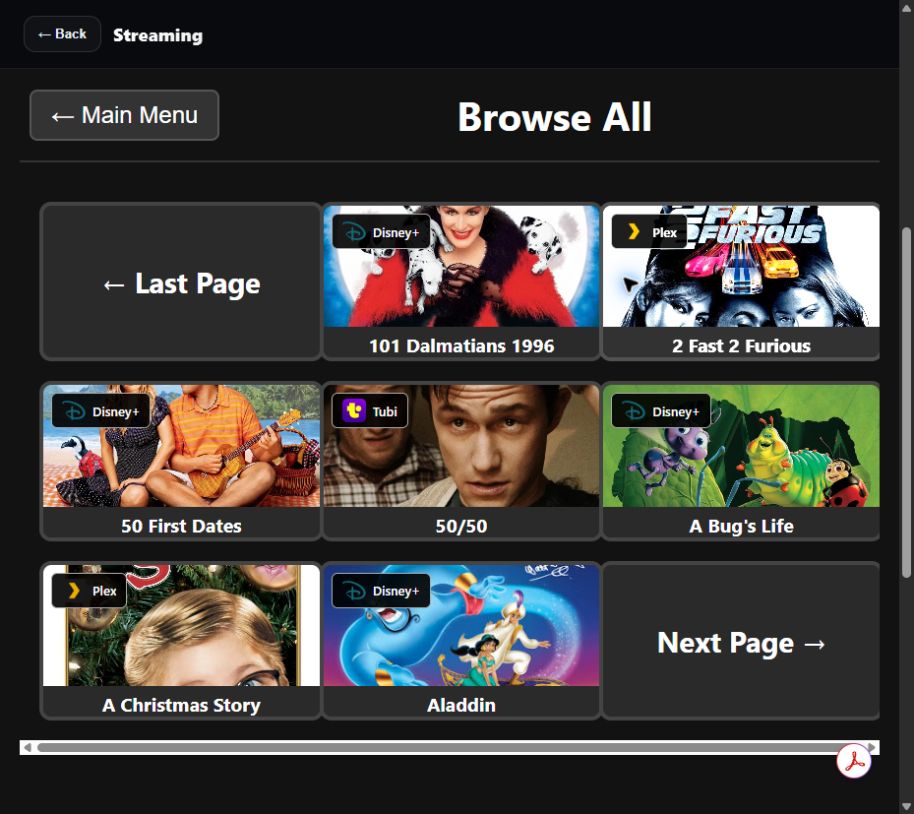
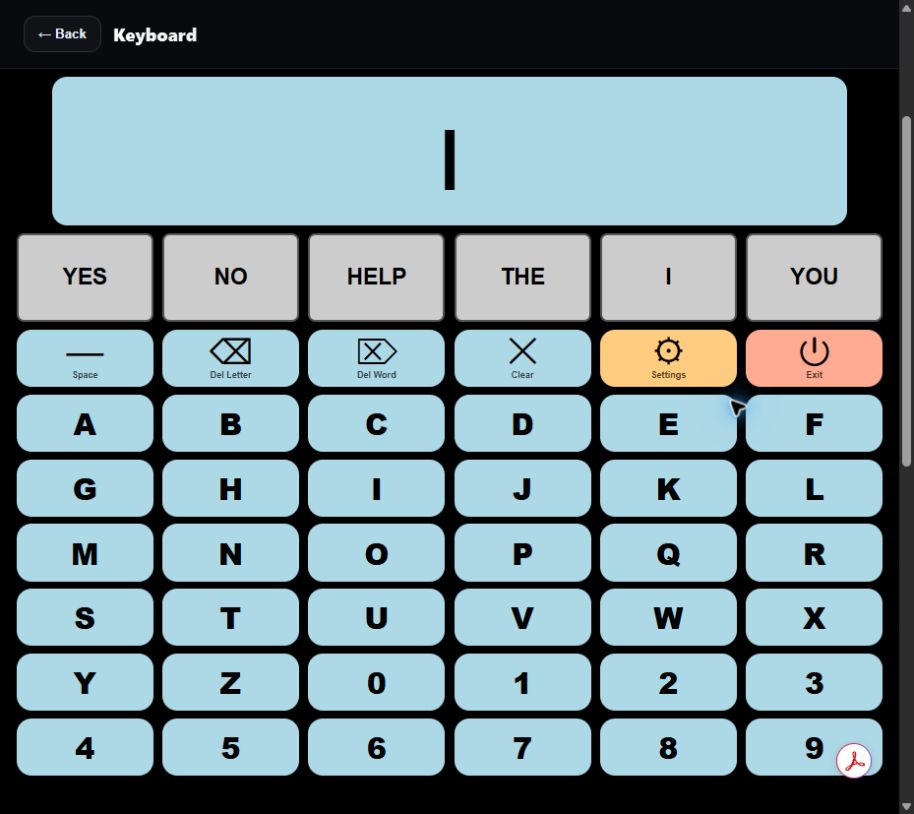
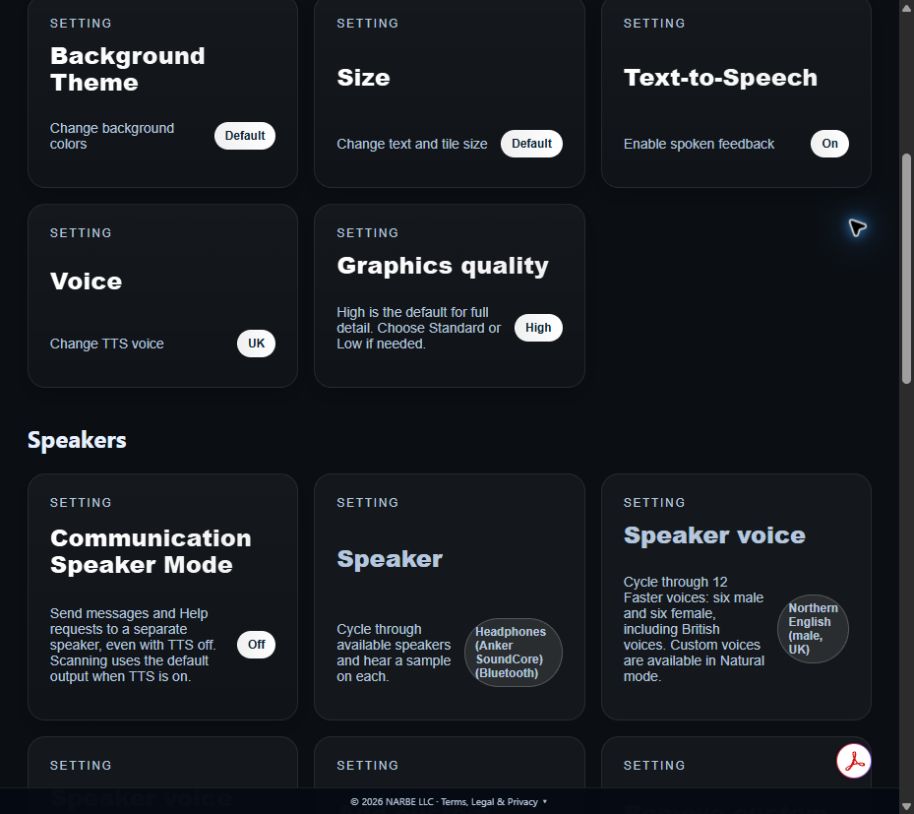
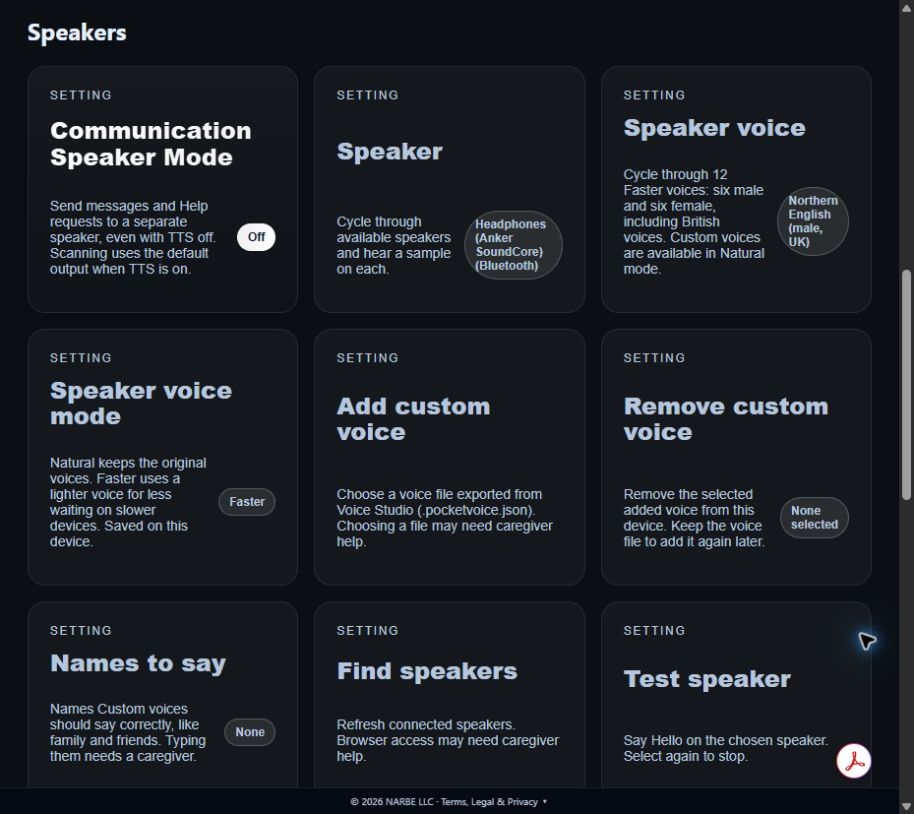
Games, a predictive keyboard, a phrase and media board, YouTube search, a journal and a personal streaming library. These are real screens from the current web app.

Streaming library with large movie tiles and service labels.
01 / INSIDE THE HUB

A library he can browse

Shows and movies from a personal collection, brought together in a switch-accessible library. New installations start empty.

Benny’s Hub predictive keyboard with large letter and word buttons.
02 / INSIDE THE HUB

Words, one selection at a time

The predictive keyboard gives Ben a way to type and speak using the same switches.

Hub settings showing the Graphics quality control.
03 / INSIDE THE HUB

Graphics that fit the device

High, Standard and Low. This screenshot shows High; this Pi build uses Low to reduce the rendering load.

Speaker settings, including Faster voice mode and Add custom voice, with Speaker Mode currently off.
04 / INSIDE THE HUB

Speech with its own output

Settings → Speakers brings together the output device, voice mode and custom voice controls. Shown with Communication Speaker Mode off; enable it to use these controls.

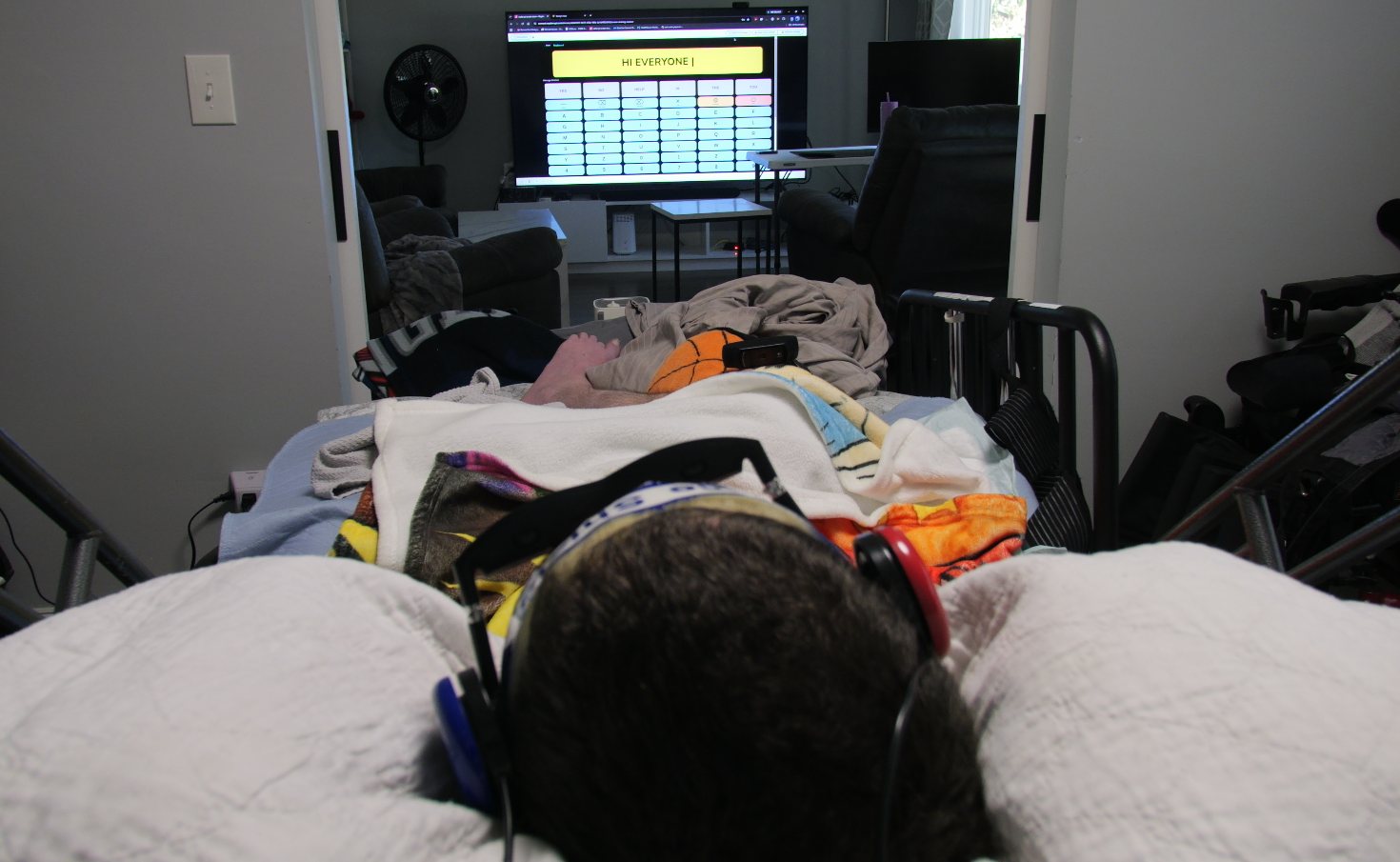
Ben using the glasses in bed while his keyboard message HI EVERYONE is mirrored on a television for testing. TV mirroring is not enabled by default.

THE POINT OF ALL THE PARTS

“Hi everyone.”

Ben using the keyboard during testing, with his message mirrored on the TV. TV mirroring was part of that test; it is not enabled by default or included in the standard portable setup.

BUILD WALKTHROUGH

A closer look, in motion.

A demo video of this physical build is coming soon.

COMING SOON

06 / MADE WITH CODEX

A very personal reason
to build with AI.

Codex helped us turn specific obstacles in Ben’s day into software we could change, try and improve.

The work was in the details: lighter graphics, accessible browser controls, a separate speech output, faster voices and the settings needed to make them usable together. Ben’s experience set the direction.

This project page was built with Codex, too. We’re sharing the process and the source so another family or builder can start closer to a setup that fits their person.

How we build accessibility tools with AI

07 / MAKE YOUR OWN

From parts
to a personal setup.

Start with a conventional display and keyboard while configuring the Pi. Then test each part with the person who will use it. The glasses are optional; the Hub can work with an ordinary display.

01 Connect and map the switches

Connect the two switches to a TRRS Trinkey with wiring or a splitter appropriate to the switch plugs. Configure one input to send Space and the other Enter, then plug the Trinkey into the Pi.

Confirm both press and release work, including held inputs. The exact firmware and wiring from Ben’s build have not yet been added to this project.

Adafruit’s TRRS Trinkey setup guide ↗

Build-specific firmware status

02 Open the Hub and install Companion

On Raspberry Pi OS, open Chromium and visit bennyshub.com. An app-style installation is optional if the browser offers it.

Install Benny’s Hub Companion in the same browser profile. Refresh the Hub, check the connection, and enable the supported services you want to use through the Companion setup.

Add your own streaming links and sign in to the relevant services. The public streaming library and journal start empty. Export important data as a backup.

Companion setup & connection checks ↗
03 Connect the display and speech output

Connect the Pi’s HDMI output through a compatible VITURE dock or HDMI-to-XR adapter for your glasses. Match the cable and power arrangement to the exact models; the Pi’s USB-C power connector is not a video output.

Pair the Bluetooth speaker in Raspberry Pi OS. Keep the glasses as the default media output, then open Hub Settings → Speakers, turn on Communication Speaker Mode, choose the external speaker and use Test speaker.

Complete browser device permissions with a keyboard or caregiver assistance when needed. Test a keyboard message and Help request while media remains routed to the glasses.

Check the VITURE dock connections ↗
04 Tune the Hub for the Pi

Set Graphics quality → Low. A game with its own saved override may need to be returned to Use Hub setting. Reopen a game if it says the full change applies next launch.

Try Speaker voice mode → Faster if speech generation feels slow. Use Natural for custom voices. Allow the first model download to finish, then try several messages.

Adjust scan speed, input sensitivity, spoken feedback and the one- or two-switch approach with the person using the system.

05 Launch full screen in kiosk mode

Close existing Chromium windows, then launch the same configured browser profile in kiosk mode. This hides the tabs and address bar:

chromium --kiosk https://narbehouse.github.io/bennyshub/

Some older Raspberry Pi OS installations use chromium-browser instead of chromium. A connected keyboard can leave kiosk mode with Alt + F4.

06 Open automatically at startup

For Raspberry Pi OS desktops using labwc, add the launch line to your user’s ~/.config/labwc/autostart file, preserving any existing entries:

chromium --kiosk https://narbehouse.github.io/bennyshub/ &

Restart and check that the correct browser profile, Companion and audio outputs are ready. Other desktop environments use different startup configuration.

Official Raspberry Pi kiosk guide ↗
07 Optional: fix Bluetooth headset switching

This applied to Ben’s Pi with WirePlumber 0.5.8, a separate USB microphone, and RTC listening. If listening makes Bluetooth speech sound muffled, turn RTC listening off and let normal audio return. Test:

wpctl settings bluetooth.autoswitch-to-headset-profile false

Turn listening back on and check both the USB microphone and speaker. Once it works, save the setting:

wpctl settings --save bluetooth.autoswitch-to-headset-profile false

This disables automatic switching to the Bluetooth headset microphone profile for this Pi user. To restore that behavior:

wpctl settings --save bluetooth.autoswitch-to-headset-profile true

Clear speech was confirmed across several messages. Persistence after reboot still needs to be confirmed on the build.

WirePlumber settings reference ↗

WHERE THE BUILD IS TODAY

Working for Ben.
Alongside his Surface.

Ben’s Surface Pro remains his main setup. The Pi adds a portable way to use Benny’s Hub on the go, with a substantial collection of web-based games, streaming and other tools.

Ben has tried the kit in his chair and in bed. Our family’s experience is encouraging, and we’re continuing to refine it.

This build currently runs the Hub’s web apps. Two tools Ben uses on his Surface are not part of this setup:

Broader web search. Ben’s desktop search app gives him access to more of the web. The web Hub currently offers YouTube-only search.

His messenger app. Ben’s desktop messenger mirrors Discord. We have not implemented a web-based version.

Bringing either tool to the web Hub would need further exploration. Feasibility is still an open question, and there is no commitment or timeline to add them. The Pi is already a useful portable supplement with its current web apps.

A measured battery run, broader device testing, the exact Trinkey firmware and a physical-build demo video are still ahead.

08 / KEEP BUILDING

The people.
The code. The parts.

Ben gives the project its purpose and tests what works. Bryan helped make custom voices possible. SwitchedToys, Adafruit, and the open-source community supplied pieces we could build on.

NARBE-authored software is MIT-licensed. Hardware, switch designs, voice models, media and third-party assets have their own terms. Movie artwork in the library screenshot belongs to its respective owners.

PROJECT NOTICES

Independence and intended use

Our relationship with OpenAI

Benny’s Hub Mobile is a personal, experimental project built with Codex. NARBE House is independent of OpenAI. Our relationship with OpenAI is limited to participation in the Codex Physical Builds project, which supplied the Raspberry Pi used in this build, and occasional sharing of social-media posts.

This is not an official OpenAI product. Hardware support, project participation or social-media sharing should not be taken as OpenAI endorsement, certification, or validation of this build.

Entertainment only. No AAC or medical claims.

This build is shared for entertainment purposes only. We do not offer, market, or make claims for it as an augmentative and alternative communication (AAC) system, medical device, or therapeutic product.

Its keyboard, phrase board, speech output, and Help features are experimental recreational features. They are not a substitute for prescribed AAC equipment, professional assessment, or a care plan. Do not rely on them for essential communication, medical needs, emergency alerts, or safety-critical assistance.

Personal experiences described here are not clinical evidence or guarantees of suitability or reliability.

Space moves · Enter chooses. Choose Close to return.

EXPLORE AT YOUR PACE

Two switches. Your choices.

Tap and release Space to move. Tap and release Enter to choose. A section opens its own choices: read it aloud, explore its links and photos, or visit a smaller part.

Each section includes the Sections and Controls & help buttons in its scan. Sections returns to the section list; help returns you to your place when you close it.

At the end of each group, a dashed outline marks the Back message in the control bar or open dialog. It names where you will return. Choose it to go back one level. Between the last and first sections, the highlight clears; Enter does nothing there.

While reading, Enter stops the voice. Space stops reading and moves to the next choice. Hold Space to scan backwards. You never need to hold a switch to move forward or go back.

Auto scan moves the highlight for you, so Enter alone can choose. With the Hub’s Space Brake enabled, Space pauses and resumes auto scanning. Your voice and scan choices are shared with Benny’s Hub on this website.

Mouse, touch and ordinary keyboard navigation still work. Press Tab or choose End switch browsing to return to standard controls. Speech uses your browser’s available voices.

YOUR NEXT STOP

Open a link